
Auto Clicker guide
Every control of the Auto Clicker in order. The five location modes and image detection and click sequences and timing and stop rules and profiles.
The Auto Clicker clicks on a schedule with mouse movement that looks human. This guide walks through every control on the page in the order you meet it.
Where to click
The five modes decide the target of each click. Pick one and the controls of that mode appear below the row. The other modes stay out of the way.
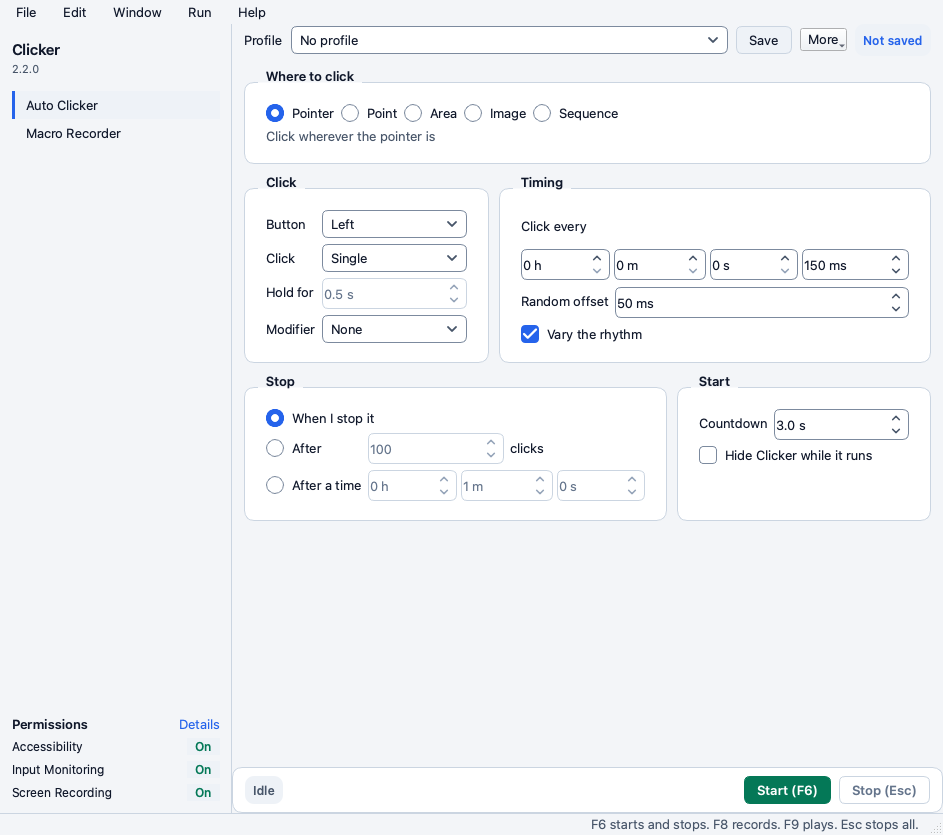
Pointer
Clicker clicks wherever the mouse pointer sits at the moment of each click. Move the mouse and the clicks follow.
Use it when the target moves or when you want to steer the run by hand. Start with a countdown so you have time to move the pointer into the other app.
Point
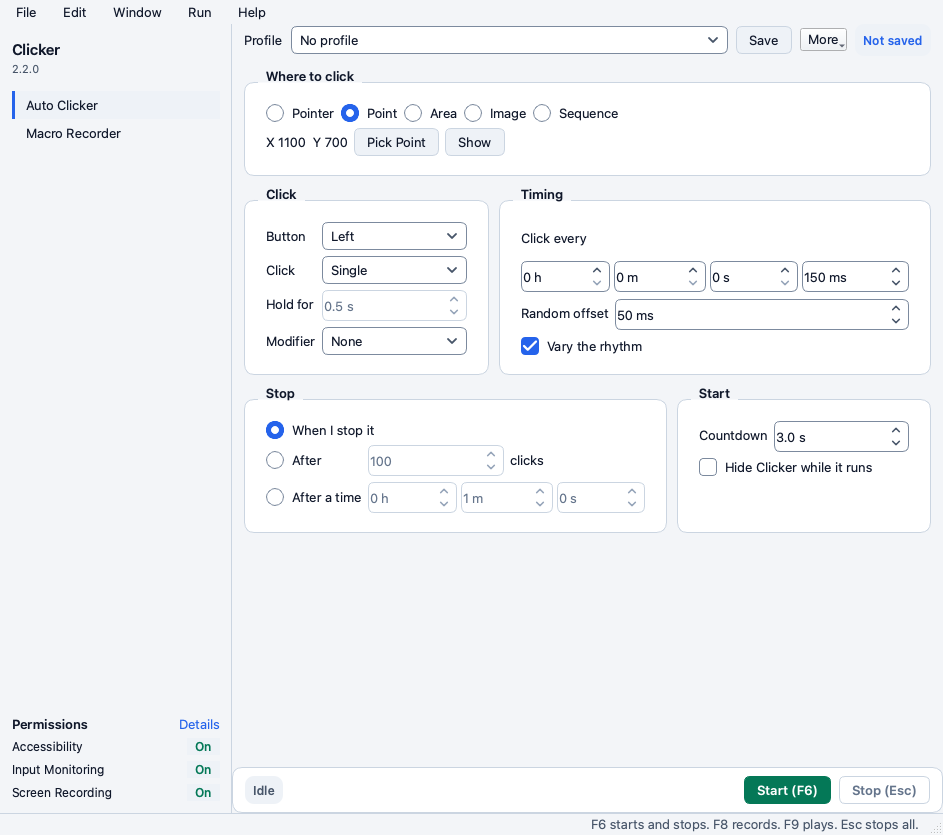
Clicker clicks one fixed point on the screen. The row shows the saved point as X and Y.
- Click Pick Point.
- Every Clicker window hides and a chip counts down 3 seconds.
- Move the pointer to the spot you want and hold it there until the countdown ends.
- The point is saved and the windows come back.

Show flashes a marker on the saved point for 2 seconds so you can check it. A point outside every screen refuses the start.
Why it matters. A fixed point is exact. Use it for a button that never moves such as a Confirm button or a Collect button.
Area
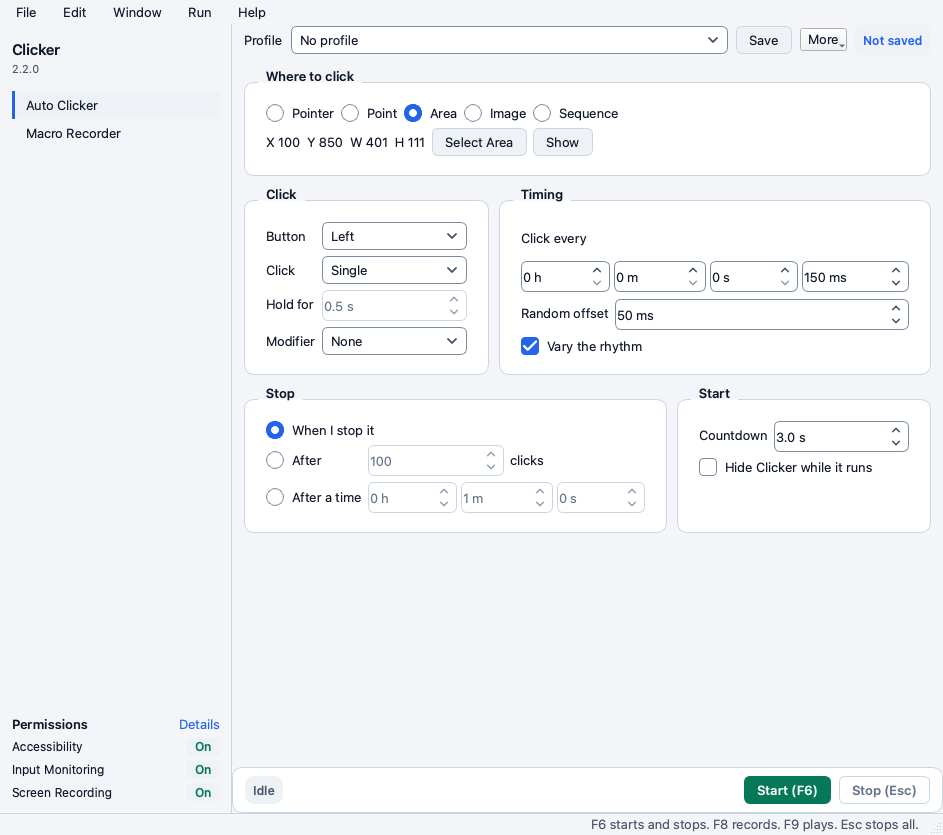
Clicker clicks a random point inside a rectangle on each click. The row shows the saved rectangle.
- Click Select Area.
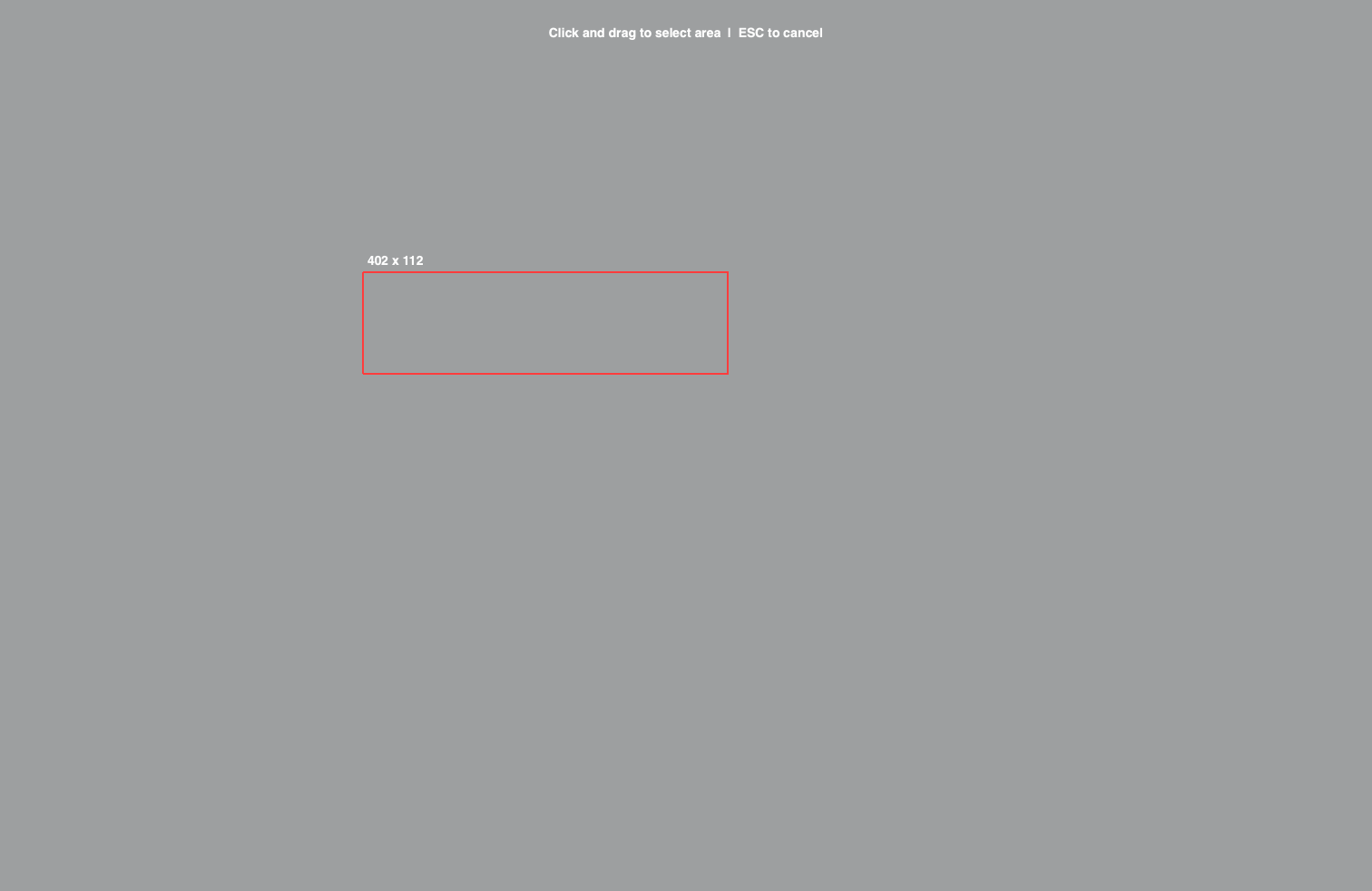
- The screen dims on every display and the hint reads Click and drag to select area.
- Drag a rectangle. The size shows above it while you drag.
- Let go and the area is saved. Esc cancels the selection.
Show flashes the saved area for 2 seconds. Use Area when a target is large or when the clicks should not all hit one pixel.
Image
Clicker looks for a picture on the screen and clicks the best match. The row shows a thumbnail of your template.
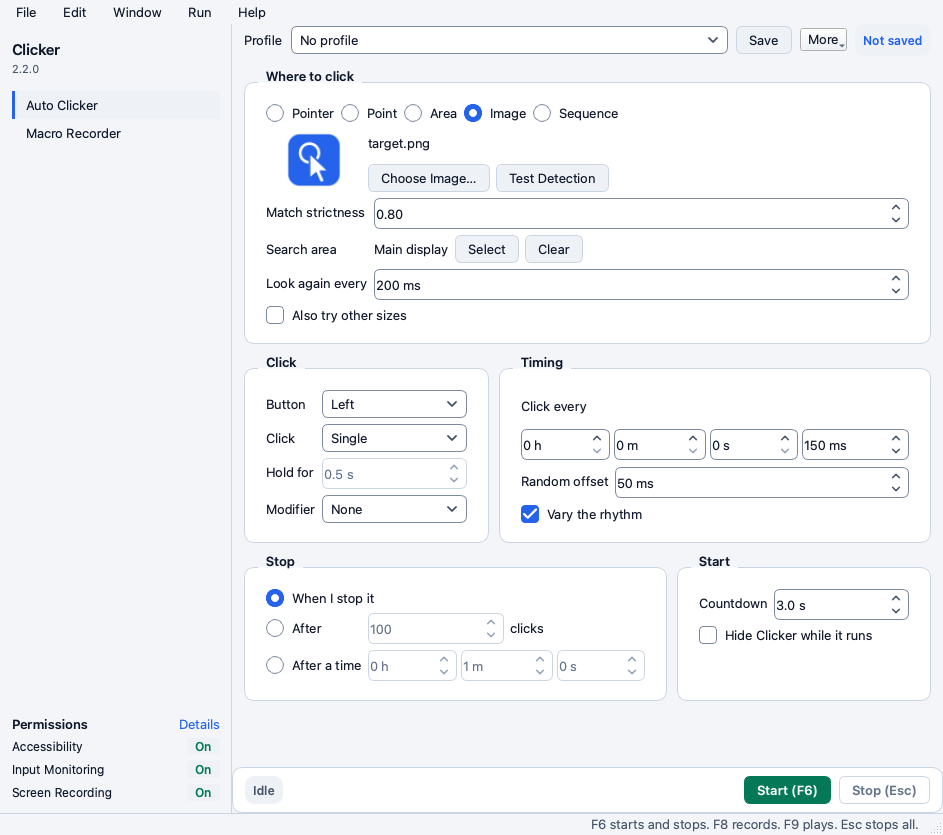
- Take a screenshot of the thing to click and crop it tight. A PNG of the button alone works best.
- Click Choose Image and pick the file.
- Click Test Detection. Clicker hides itself and scans the screen and marks the best match with a green frame and its score.
- Read the chip. Match 0.93 means the match passes. Match 0.41 needs 0.80 means it does not.
- Start the run.

The controls of Image mode:
- Match strictness. How close a spot on the screen must be to your picture before Clicker clicks it. The default is 0.80. Lower it a little when Test Detection finds the right spot with a score just below the line. Raise it when it clicks the wrong thing.
- Search area. Select limits the scan to a rectangle. Clear goes back to the main display. Without a search area Clicker scans the main display only.
- Look again every. How often Clicker scans the screen while the picture is missing. The default is 200 ms.
- Also try other sizes. Clicker also tries the picture at other scales. Switch it on when the template came from another screen or another zoom level. The scan takes longer with it on.
Why it matters. A tight template and a small search area make detection faster and more exact. A screenshot taken on a Retina display is twice the size of the same thing on a standard display so Also try other sizes bridges that gap.
Screen Recording on macOS. Image detection cannot see the screen until Screen Recording is on. Test Detection says so when it is off.
Sequence
Clicker clicks a list of steps in order. Each step has its own point and button and click and a pause after its press.
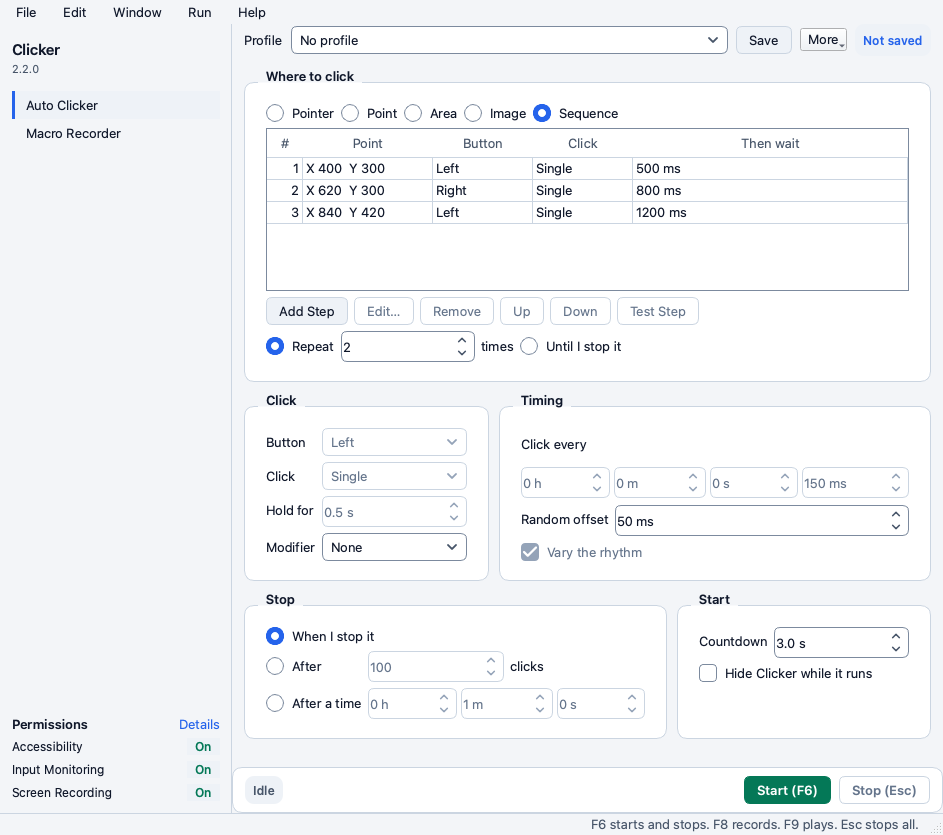
- Click Add Step. The windows hide and the 3 second countdown picks a point like Pick Point does.
- The step appears in the table with the picked point and a left single click and a pause of 500 ms.
- Select the step and click Edit to change its point or button or click or hold time or the Then wait pause.
- Repeat for every step. A sequence holds up to 200 steps.
- Under the table pick Repeat N times or Until I stop it.
- Click Start.
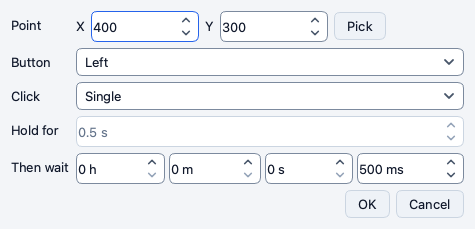
Remove deletes the selected step. Up and Down reorder it. Test Step runs the selected step once so you can check it lands where you expect.
In Sequence mode the Button and Click and Hold for controls and the Click every and Vary the rhythm controls are greyed out because every step carries its own click and its own pause. Modifier and Random offset stay active and apply to every step.
Why it matters. A sequence replaces a macro when the targets are fixed buttons. It is easier to edit than a recording and it keeps the human-like movement between the steps.
Click
- Button. Left or Right or Middle.
- Click. Single or Double or Triple or Hold.
- Hold for. How long a Hold click keeps the button down. The box is active in Hold alone.
- Modifier. A key held down during each click. None or Shift or Control or Option or Command on macOS. None or Shift or Ctrl or Alt or Win on Windows.
Timing
- Click every. The interval between two clicks in hours and minutes and seconds and milliseconds. The default is 150 ms.
- Random offset. Each interval moves by a random amount up to this value in either direction. The default is 50 ms.
- Vary the rhythm. Clicker adds short pauses and quick bursts the way a hand does. The average interval stays on your setting.
Why it matters. A run at exactly 150 ms every time is easy to spot. The offset and the rhythm make the timing look like a person.
Clicks cannot keep up. When the interval is shorter than the time the mouse needs to travel to the target the run bar says so and Clicker clicks as fast as the movement allows.
Stop
- When I stop it. The run goes on until you press Stop or Esc or the hotkey.
- After N clicks. The run ends after that many clicks.
- After a time. The run ends when the time is up. No click starts after the time ends.
Start
- Countdown. The seconds between Start and the first click. The default is 3 seconds. It gives you time to bring the other app in front. The hotkey has its own countdown in Settings and starts at once by default.
- Hide Clicker while it runs. Every Clicker window leaves the screen before the first click and comes back when the run ends.
The run bar
Start (F6) starts the run and Stop (Esc) ends it. The chip on the left shows the state. Starting in N s during the countdown. Running during the run. Done or Stopped or Blocked after it.
During the run the bar shows the clicks so far and the elapsed time and the rate and what is left. After the run it keeps one sentence that names why the run ended. For example Done after 100 clicks in 15 s or Stopped with Esc after 42 clicks in 6 s.
The sidebar shows a dot next to Auto Clicker while a run is on. The menu bar item on macOS shows the state too and its Stop entry ends the run as fast as the Stop button.
Profiles
A profile is a named set of every control on the page. The Profile picker at the top switches between them.
- Save writes the current settings into the selected profile.
- More and then Save As New Profile asks for a name and saves a new one.
- More and then Rename and Delete rename or move the selected profile to the Trash.
- More and then Import Profile File brings in a profile file from another computer or from a 1.1 install.
- More and then Reset Settings to Defaults puts every control back.
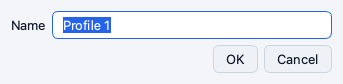
The chip next to More reads Not saved or Edited when the controls differ from the saved profile. A switch to another profile with unsaved changes asks to save them first. Command S saves the current profile and Shift Command S saves it under a new name.
Why it matters. Keep one profile per task. A profile for a game and one for a form and one for a test run.
Clicks never land on Clicker
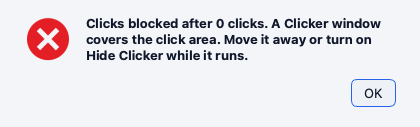
Clicker never clicks on one of its own windows. A click that would land there is skipped and not counted. Three skipped clicks in a row stop the run with the Clicks blocked message.
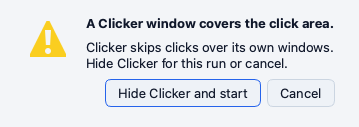
When Hide Clicker while it runs is off and you start a run whose target lies under a Clicker window Clicker offers Hide Clicker and start before the first click.
What to do when you see Clicks blocked. Switch on Hide Clicker while it runs or move the Clicker window off the click area and start again.
The mouse movement
Clicker moves the mouse with the WindMouse algorithm. Each run has a personality with its own speed and curve and the movement slows a little as the session goes on. Between clicks the pointer makes small idle moves. Settings and then Movement and then New Style rolls a new personality.