
License and subscription
The 14 day trial and the x4ops subscription and the key and the 3 computers and offline use and renewal and cancellation and refunds.
Clicker is free to try for 14 days. After that it needs a license key from the x4ops subscription. This guide covers the trial and the purchase and the key and what happens online and offline and how the subscription renews and ends.
The trial
Clicker runs for 14 days from the first launch on a computer. The trial covers the whole app and nothing is held back. It starts with one short online contact to clicker.x4ops.com so the days count from one date.
Settings and then License shows the days left. During the last 7 days a banner above the sidebar shows them too.
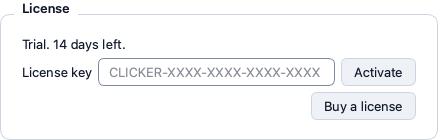
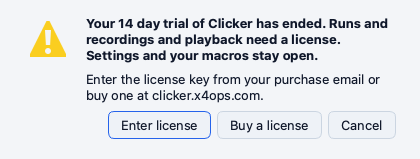
After the 14 days Clicker still opens and your settings and macros stay. The Start and Record and Play buttons and the hotkeys then open a dialog with Enter license and Buy a license and Cancel.
Deleting the trial file does not reset the trial. The server keeps the first start it saw for the computer and the next launch picks that date up again.
Buy the subscription
- Open the pricing page or click Buy a license in the app.
- Click Buy and pay through Stripe. The subscription costs 9.99 EUR every 6 months and covers Clicker and every x4ops app.
- Two emails arrive within minutes. The receipt comes from Stripe. The key comes from x4ops at support@x4ops.com.
- Keep the key email. The key is the proof of your subscription and the only thing you type into the app.
A key reads as four groups of four letters and digits such as XXXX-XXXX-XXXX-XXXX. A key bought before 20 October 2026 starts with CLICKER and keeps working.
Enter the key
- Open Clicker and go to Settings and then License.
- Paste the key into the key field.
- Click Activate.
- Clicker contacts clicker.x4ops.com once. The panel reads Licensed to this computer with your key id and Active until with the end of the paid period.
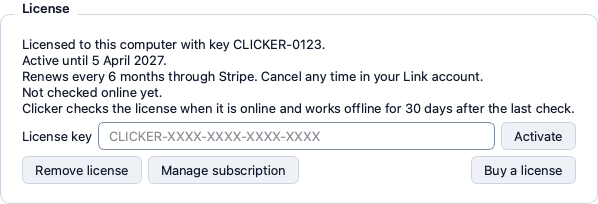
Enter license in the trial dialog opens the same panel with the key field focused.
Up to 3 computers
One key works on up to 3 computers that you use yourself. Each computer activates once with its own online contact. A fourth computer is refused until one of the three frees its seat. A Mac and a Windows PC count the same.
Free a seat with Remove license
- On the computer you no longer want to use open Settings and then License.
- Click Remove license.
- The license file leaves that computer and its seat is free for another one.
The release goes out at once while the computer is online. Offline Clicker records it and sends it at the next launch or start that reaches clicker.x4ops.com. The panel says so until then. A seat also frees itself after 60 days without a check so a computer you sold or lost is not a problem.
Removing the key does not restart the trial. A computer past its 14 days refuses to start until a key is entered again.
Online and offline
A licensed computer checks the key about once a day while it is online. The check runs in the background and never delays a run.
Without internet the key keeps working for 30 days after the last check. After 30 days the Start buttons refuse until the computer reaches clicker.x4ops.com once more and the check passes.
Why it matters. You can work on a plane or in a lab without internet for a month. The check is what lets Clicker pick up a renewal and what stops a leaked key.
Renewal every 6 months
The subscription renews every 6 months through Stripe and charges the card you paid with. Clicker picks the renewal up on its next online check. There is never a new key to type. The same key keeps working on the same computers.
Settings and then License shows Active until with the end of the paid period and the line Renews every 6 months through Stripe while the subscription runs. Manage subscription opens your Link account where you see the next payment.
When the subscription ends
Cancel in your Link account and the key stays active until the end of the period you paid for. A failed card payment gets 3 days before the key stops.
After the end of the paid period Clicker still opens and your settings and macros stay. Clicker then waits to hear about a renewal. While it is offline it keeps running for up to 30 days after the end and the License panel reads The paid period ended. Once the server says the subscription ended or the 30 days pass the Start buttons open a dialog that names the end date and offers Renew and Enter license and Cancel.
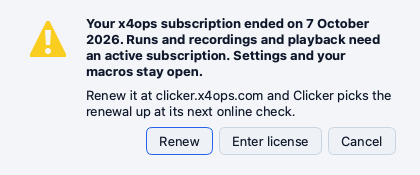
Renew opens the pricing page. After you renew Clicker picks the renewal up at its next online check and the panel reads Active until again. While the paid period has ended Clicker checks at every launch and start so the renewal lands at once.
Cancel in the Link account
- Open Settings and then License and click Manage subscription. Or sign in at link.com with the email you paid with.
- Open the x4ops subscription.
- Click Cancel.
The key stays active until the end of the paid period and the renewal does not run.
Lifetime keys from before 2.2.0
A key bought before 2.2.0 carries no end date. It stays valid as a lifetime key and the License panel shows none of the subscription lines.
Refunds
Ask for a refund of the current period within 14 days of its payment by email to support@x4ops.com with your receipt. You receive that payment back and the subscription ends. The key stops working at the next daily check on every computer where it is active.
A lost key
Write to support@x4ops.com from the address you used for the subscription. The key is sent to that address again. Add the receipt when you still have it so the order is found faster.
Where the files live
Clicker keeps two small records and one short lived file. The trial record trial.json and the license file license.json and releases.json (present while a removed license still owes its seat release) live in one folder.
- macOS:
~/Library/Application Support/dev.zghanem.clicker - Windows:
%LOCALAPPDATA%\x4ops\Clicker
A mirror of the trial record sits next to the settings as ~/.config/clicker/.trial. Deleting the license file on a computer means entering the key again on that computer.
What the app sends
Clicker contacts clicker.x4ops.com in four moments and sends these fields and nothing else.
- When the trial starts and about once a day during the trial: a hash of the machine and the trial start date and the app version.
- At activation: the key you typed and a hash of the machine and the app version. The server stores a hash of the key and never the key in clear text.
- About once a day while licensed: a hash of the key and a hash of the machine and the app version. The reply carries the end date of your paid period so the app can show it and pick up a renewal.
- When you click Remove license: a hash of the key and a hash of the machine so the server frees the seat.
No name and no email and no file content leave the computer. Like every web server clicker.x4ops.com and the x4ops license service at license.x4ops.com see the internet address the computer connects from. The license service keeps it in memory for 10 minutes to limit the requests per address and no license record stores it. The privacy page has the full statement.
Help and then Run Diagnostics works on an expired trial so a permission problem can still be checked.