
Macro Recorder guide
Record the mouse and the keyboard and edit the recording event by event and clean it up and play it back with repeats and speed.
The Macro Recorder records what you do with the mouse and the keyboard and plays it back. You can edit the recording event by event before you play it. Open the page from the sidebar or with Command 2 on macOS.
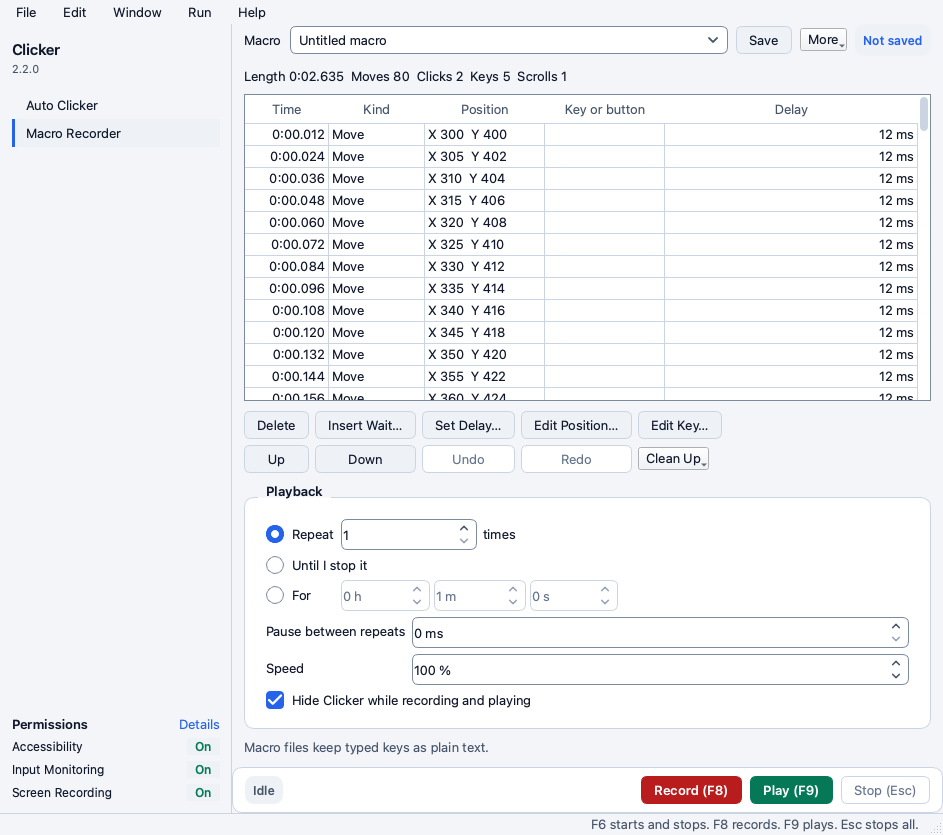
Recording needs macOS in this release. On Windows the Record button says so. Playback and the event editor and the macro library work on macOS and Windows so a macro recorded on a Mac plays on a PC.
Record a macro
- Click Record (F8). With Hide Clicker while recording and playing on every Clicker window leaves the screen.
- Do the task with the mouse and the keyboard.
- Press F8 again or Esc to stop. The windows come back and the event table fills up.
Clicker records mouse moves and clicks and drags and scrolls and key presses with their modifiers. It never records its own output so a hotkey press that starts or stops the recording never lands in the macro. A key that was already held when the recording started and a button still held when it stopped are dropped.
The stats line above the table reads the length of the macro and the count of moves and clicks and keys and scrolls.
Keys are stored as plain text. A macro file keeps every typed key in readable form. Do not record a password.
On macOS recording needs the Input Monitoring permission. The Record button refuses with a sentence that says so when it is off.
The event table
Every event is one row with five columns.
| Column | What it holds |
|---|---|
| Time | When the event happens counted from the start of the macro |
| Kind | Move or Mouse down or Mouse up or Scroll or Key down or Key up |
| Position | The X and Y of a mouse event on the screen. Double click it to change it |
| Key or button | The key name or the mouse button |
| Delay | The pause before this event |
Select one row or several rows and use the buttons below the table. Undo and Redo take back any edit. Command Z and Shift Command Z do the same.
Edit the recording
- Delete removes the selected events. Delete or Backspace on the keyboard does the same while the table has focus. A key press and its release always go together so a macro never leaves a key held down.
- Insert Wait adds a pause before the selected event. Type the length in hours and minutes and seconds and milliseconds.
- Set Delay changes the pause before the selected event. Use it to speed up one slow spot.
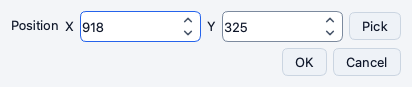
- Edit Position moves a mouse event to another X and Y.
- Edit Key changes the key of a key event. Press the new key in the dialog.
- Up and Down move the selected event one row. A press moves with its release.


Why it matters. A recording holds every twitch of your hand. Delete the moves you do not need and set the delays you want and the macro plays cleaner than the original.
Clean Up
The Clean Up menu holds three tools that work on the whole macro.
- Trim Idle Time at Start and End removes the pause before the first action and the pause after the last one. Use it when you took a moment to start after pressing Record.
- Remove Mouse Moves deletes every move and keeps the clicks and drags and scrolls and keys. The clicks jump straight to their points.
- Simplify Mouse Moves keeps the shape of each path with fewer points. The macro gets smaller and plays the same.
Play a macro
- Pick the repeat mode under Playback.
- Set Pause between repeats and Speed.
- Click Play (F9). The windows hide and the macro runs.
- Press F9 again or Esc or click Stop to end it early.
The repeat modes:
- Repeat N times. The default is 1.
- Until I stop it. The macro loops until you stop it.
- For a time. The macro loops until the time is up. No repeat starts after the time ends.
Pause between repeats adds a wait between two rounds. Speed runs the macro from 1 to 1000 percent. 200 percent plays twice as fast and 50 percent at half speed.
The run bar shows Repeat 3 of 10 and the current event during playback. After it the bar keeps one sentence such as Played 10 times with 40 clicks in 2 m 10 s. A playback you stopped reads Stopped and plays no finish sound.
Esc never replays. Esc is the fixed stop of every run so a recorded Esc press is skipped during playback.
Why it matters. Record once at your own pace and play it back faster. Clean the delays first so a fast speed does not outrun the app you drive.
Hide Clicker while recording and playing
The box is on by default. Every Clicker window leaves the screen during a recording and a playback and comes back after. With the box off a playback whose click would land on a Clicker window offers Hide Clicker and play before it starts.
The macro library
Macros live by name in the Macro picker at the top of the page.
- Save writes the current macro under its name. Command S does the same.
- More and then Save As New Macro asks for a name and saves a copy. Shift Command S does the same.
- More and then Rename and Delete rename the selected macro or move it to the Trash.
- More and then Import Macro File brings in a macro file from another computer.
- The Recent list in the picker shows the macros you used last.
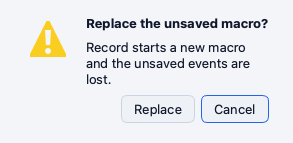
Record asks before it replaces a macro you have not saved.
Macros store absolute screen points so a macro plays on the same screen layout it was recorded on.
Hotkeys on this page
| Key | Action |
|---|---|
| F8 | Start or stop recording |
| F9 | Start or stop playback |
| Esc | Stop everything |
On macOS the hotkeys work in every app once Input Monitoring is on. On Windows they work while a Clicker window is focused. The Hotkeys and Settings guide explains how to rebind F8 and F9.