
Troubleshooting
Clicks that do nothing and permissions that read Off and hotkeys that do not fire and image detection that finds nothing and where the log lives.
Most problems come down to a permission or a Clicker window in the way. Find your symptom below. Each entry names the cause and the fix. When nothing here matches send a report to support@x4ops.com with the steps at the end of this page.
Clicks do nothing or the counter stays at 0
The run bar reads Blocked or Clicks blocked after 0 clicks. A Clicker window covers the click area and Clicker skips clicks over its own windows.
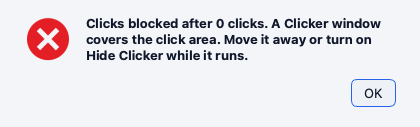
- Switch on Hide Clicker while it runs under Start.
- Or move the Clicker window off the click area.
- Start again.
With Hide Clicker while it runs off Clicker offers Hide Clicker and start before a run whose target lies under one of its windows. Accept the offer and the run goes.
Clicks count up but nothing happens
On macOS the Accessibility permission is off for Clicker. The clicks leave Clicker and macOS drops them.
- Look at the permission panel at the bottom of the sidebar. Accessibility reads Off.
- Click Allow or Open Settings and switch Clicker on under Accessibility.
- Start again.
A run that loses Accessibility in the middle stops with the sentence Accessibility was turned off.
A permission reads Off after you switched it on
macOS applies Input Monitoring and Screen Recording to a new process only.
- The permission panel offers Restart next to the row. Click it.
- Clicker restarts and the row reads On.
macOS asks for the permissions again after an update
Every version you download from the site asks for the three permissions again on macOS. The reason is that each download carries its own signature. Switch Clicker on once more under Accessibility and Input Monitoring and Screen Recording. Your settings and profiles and macros stay.
The hotkeys do not fire
On macOS the global hotkeys need Input Monitoring. Without it the hotkeys work only while Clicker is in front.
- Check the permission panel. Switch Input Monitoring on and click Restart when the panel offers it.
- On a MacBook hold Fn with the function key. Or switch on the standard function keys in System Settings and then Keyboard.
- Check Settings and then Hotkeys. The Run menu shows the current binding. Reset to Defaults brings back F6 and F8 and F9.
On Windows the hotkeys work while a Clicker window is focused. Click into Clicker first.
The run did not start and the bar reads Did not start because the hotkey modifiers stayed down. A hotkey with modifiers waits until you let go of them. Release the modifiers and press the hotkey again.
Image detection finds nothing
Test Detection marks nothing or the chip reads Match 0.41 needs 0.80.
- On macOS check that Screen Recording is on. Test Detection says Screen Recording is off when it is not.
- Crop the template tight. A screenshot of the button alone works better than a wide one.
- Switch on Also try other sizes when the template came from another display or another zoom level. A screenshot from a Retina display is twice the size of the same thing on a standard display.
- Lower Match strictness a little when the frame sits on the right spot and the score is just below the line.
- Set a Search area around the spot. The scan runs faster and finds fewer false matches.
Without a search area Clicker scans the main display only. A target on a second display needs a search area on that display.
The run bar says Clicks cannot keep up
The interval is shorter than the time the mouse needs to travel to the target. Clicker clicks as fast as the movement allows. Make Click every longer or move the targets closer together.
Recording does not start
On macOS the Input Monitoring permission is off. Switch it on and click Restart when the panel offers it.
On Windows recording needs macOS in this release and the Record button says so. Playback and the event editor and the library work on Windows.
Notifications do not show
On macOS notifications need the installed Clicker app from the DMG. A run from a source checkout keeps the option off. On Windows they come from the system tray so the tray must be on.
The app will not open on macOS
macOS reads Clicker cannot be opened because Apple cannot check it for malicious software or a sentence like it.
- Open System Settings and then Privacy & Security.
- Scroll to the Security section and click Open Anyway next to the Clicker line.
- Or right click Clicker in Applications and choose Open.
Clicker needs macOS 14 or later on Apple silicon. There is no Intel build.
The app will not open on Windows
Windows reads Windows protected your PC.
- Click More info.
- Click Run anyway.
Keep the Clicker folder from the zip together. Clicker.exe needs the files next to it. Clicker needs Windows 10 or 11 (64 bit).
The trial or the key cannot start
Clicker needs one online contact to clicker.x4ops.com to start the trial and one to activate a key on each computer. A computer that never reaches the internet gets neither. Write to support@x4ops.com in that case.
Where the log file lives
Clicker writes a log that names every start and stop and every skipped click and every error.
- macOS:
~/.config/clicker/clicker.log - Windows:
C:\Users\you\.config\clicker\clicker.log
File and then Show Clicker Files opens the folder. The log rotates at 1 MB and keeps 3 older files next to it.
Run the diagnostics
Help and then Run Diagnostics opens a test window in the middle of the screen and drives real clicks and keys into it for about 8 minutes. Keep your hands off the mouse and the keyboard. Any input from you or a locked screen stops it. It prints a summary of every check and writes a report.
The diagnostics work on an expired trial so a permission problem can still be checked.
Send a report to support
- Note the version from Help and then About Clicker. The About box names the version on its first line.
- Write down what you did and what you expected and what happened instead.
- Attach the log file
clicker.logfrom the folder above. - Attach the diagnostics report when you ran one.
- Email it all to support@x4ops.com.
The log is a plain text file. Open it in a text editor first when you want to see what it holds before you send it.