Getting started
Install Clicker on macOS or Windows and switch on the three macOS permissions and start the 14 day trial and learn the window.
Clicker is an Auto Clicker and Macro Recorder for macOS and Windows. This guide takes you from the download to your first run. It takes about five minutes.
What you need
- A Mac with macOS 14 or later on Apple silicon (M1 or later). There is no Intel build.
- Or a PC with Windows 10 or 11 (64 bit).
- One short internet connection on the first launch so the 14 day trial can start.
Install on macOS
- Download the DMG from the download page.
- Open the DMG and drag Clicker into your Applications folder.
- Open Clicker from Applications. macOS shows a warning the first time because the app is signed by x4ops and not notarized by Apple.
- Open System Settings and then Privacy & Security and scroll down to the Security section and click Open Anyway next to the Clicker line. You can also right click Clicker in Applications and choose Open.
- Clicker opens and asks for its three permissions. The next section explains them.
Why the warning. Apple shows this warning for every app that was not sent through its notarization service. The step runs once per version you install.
The three macOS permissions
Clicker posts clicks and keystrokes and reads the screen for image detection. macOS guards each of those with its own permission. On the first launch Clicker adds itself to the three lists in System Settings switched off and macOS shows its own prompt with an Open System Settings button. Your one task is to switch Clicker on in each list.
| Permission | What Clicker uses it for |
|---|---|
| Accessibility | To post clicks and keystrokes and to play macros back |
| Input Monitoring | To record macros and to hear its hotkeys in every app |
| Screen Recording | To let image detection see the screen |
- Open System Settings and then Privacy & Security.
- Open Accessibility and switch Clicker on.
- Go back and open Input Monitoring and switch Clicker on.
- Go back and open Screen Recording and switch Clicker on.
- Return to Clicker. The permission panel at the bottom of the sidebar reads On for all three within two seconds.
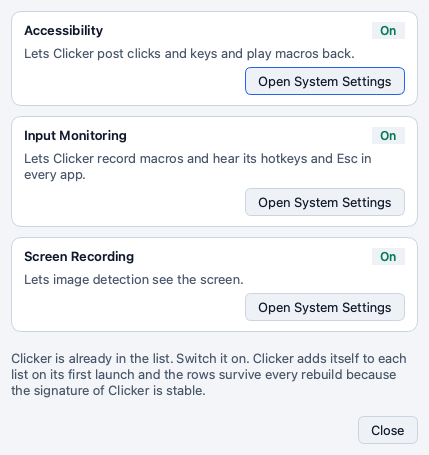
Restart after a late grant. macOS applies Input Monitoring and Screen Recording to a new process only. When you switch one of them on while Clicker is already running the permission panel offers Restart. Click it and the grant takes effect.
The panel reads the three permissions every two seconds. An Off row offers Allow until macOS has asked once in this session and then Open Settings. Help and then Permissions opens the same rows in their own window with a line on what each permission is for.
Install on Windows
- Download the Windows zip from the download page.
- Right click the zip and choose Extract All and pick a folder you keep. The zip holds one folder named Clicker with Clicker.exe inside and there is no installer.
- Keep the folder together and double click Clicker.exe.
- Windows shows the SmartScreen message Windows protected your PC because the build is not code signed. Click More info and then Run anyway.
- Clicker opens. Windows asks for no permission because Accessibility and Input Monitoring and Screen Recording are macOS features.
Windows build. The Windows build is new in 2.2.0. Write to support@x4ops.com if something looks wrong on your PC.
Two things work differently on Windows. The hotkeys F6 and F8 and F9 and Esc work while a Clicker window is focused. And recording needs macOS in this release so the Record button says so on Windows while playback and the event editor and the macro library work.
The first launch and the trial
Clicker runs for 14 days from the first launch on a free trial. The trial covers the whole app and nothing is held back. On that first launch Clicker makes one short contact to clicker.x4ops.com so the trial days count from one date. After that Clicker works offline.
Settings and then License shows the days left. During the last 7 days a banner above the sidebar shows them too with Buy a license and Enter key.

After the 14 days Clicker still opens and your settings and macros stay. Runs and recordings and playback then need a license key. The License and subscription guide explains the key.
The window
Clicker is one window with a sidebar and two pages. Here is the Auto Clicker page with its areas numbered.
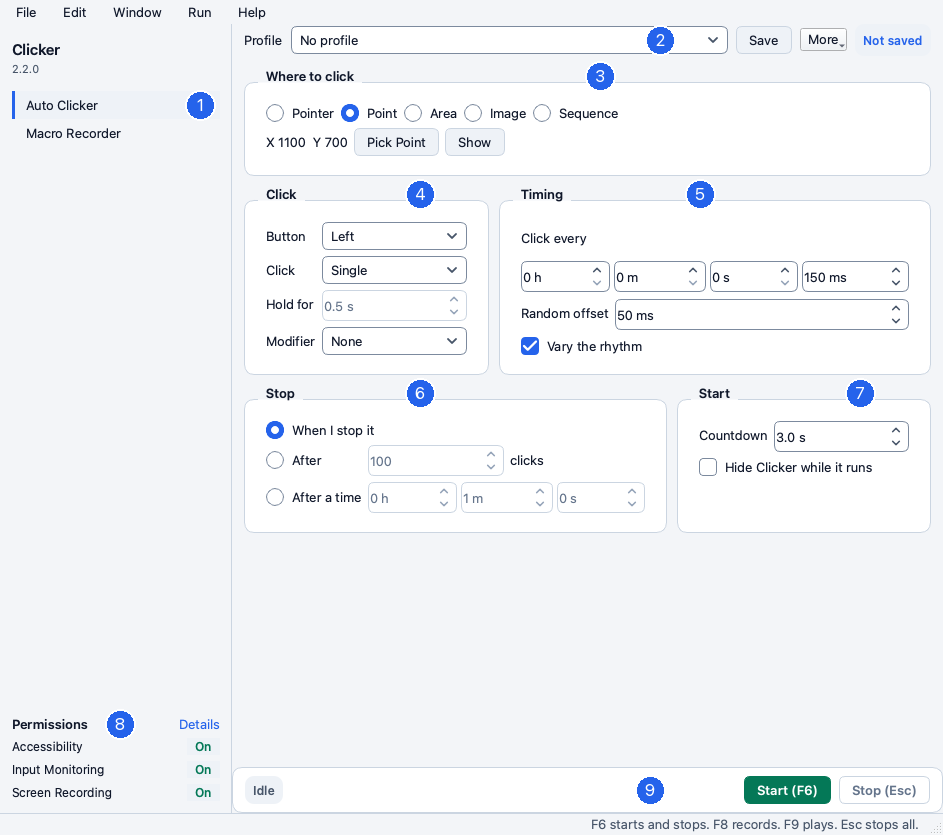
- The sidebar lists Auto Clicker and Macro Recorder. A dot appears next to a page while it counts down or runs or records. Command 1 and Command 2 switch pages on macOS.
- The Profile picker. Profiles save named settings. The chip on the right reads Not saved or Edited when the current settings differ from the saved profile.
- Where to click. The five location modes Pointer and Point and Area and Image and Sequence. The controls below the mode belong to the chosen mode alone.
- Click. The mouse button and the kind of click and the hold time and a modifier key.
- Timing. The interval in hours and minutes and seconds and milliseconds plus the random offset.
- Stop. When the run ends by itself.
- Start. The countdown before the first click and whether Clicker hides itself while it runs.
- The permission panel on macOS with one line and one state per permission. Details opens the Permissions window.
- The run bar with the state chip and the Start and Stop buttons. During a run it shows the clicks and the elapsed time and the rate and what is left.
The status line under the window reads F6 starts and stops. F8 records. F9 plays. Esc stops all. Those are the default hotkeys.
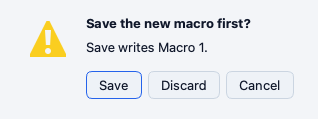
Closing the window quits Clicker. Clicker asks first when the macro holds unsaved changes. Your profile edits autosave and come back on the next start with the Edited chip.
Your first run
- Open a text editor or any app where a click does no harm.
- In Clicker keep Pointer selected under Where to click.
- Under Stop pick After and type 10 clicks.
- Click Start (F6). The chip reads Starting in 3 s.
- Move the mouse into the other app before the countdown ends.
- Clicker clicks 10 times where the pointer sits and the run bar reads Done after 10 clicks.
Clicks never land on Clicker. Clicker skips a click that would land on one of its own windows. Three skipped clicks in a row stop the run with the Clicks blocked message. Switch on Hide Clicker while it runs or move the window away when that happens.
Where Clicker keeps your files
File and then Show Clicker Files opens the folder. On macOS and Windows it holds profiles and macros and backups and the log file clicker.log.
- macOS:
~/.config/clicker - Windows:
C:\Users\you\.config\clicker
The trial record and the license file live apart from the settings in ~/Library/Application Support/dev.zghanem.clicker on macOS and %LOCALAPPDATA%\x4ops\Clicker on Windows.